Provisioning Perforce Server on AWS with Terraform
Terraform configuration that provisions a fully functional Perforce (P4) server on AWS.
Source: nightclucker/perforce-server-on-aws
Overview | Tech Stack | Intended Workflow | Implementation | Issues Faced | Next Steps
Overview
This project uses Terraform to provision a fully functional Perforce (P4) server on AWS. It replaces the original Perforce CloudFormation‑based deployment with a modern, modular Terraform implementation, enabling consistent, repeatable, and automated P4 server creation in the cloud.
Goal
Replace the existing Perforce (P4) CloudFormation-based deployment with a Terraform implementation. The new configuration should provision a fully functional P4 server on AWS as an EC2 instance, including all supporting infrastructure (VPC, subnets, security groups, EBS volumes). Integrate with Terraform Cloud for remote plan and apply workflows, and ensure all sensitive values are managed through environment variables rather than source control.
Tech Stack
Here’s a list of tools and technologies that was used in the construction of this pipeline.
| Category | Technology/Tool |
|---|---|
| Source Control | Git, GitHub |
| IDE | VS Code |
| Infrastructure | AWS, Terraform, Terraform Cloud (tfcloud) |
| AI | Co-Pilot |
Intended Workflow
All work is done on the main branch. Developers write and iterate on Terraform configurations locally, validate with terraform plan, and push to GitHub. When ready to provision, the developer triggers a run in Terraform Cloud which automatically plans and applies the changes.
Steps:
- Development — Write or update the Terraform configuration locally. This includes the full AWS stack: VPC, subnets, security groups, EBS volumes, and the EC2 instance itself.
- Local Validation — Run
terraform planlocally to catch syntax errors, misconfigurations, and review what resources will be created, modified, or destroyed before pushing any changes. - Push to GitHub — Once the plan looks correct, commit and push the changes to the main branch on GitHub.
- Update Variables (if needed) — If any tags, keys, or other environment-specific values need to change, update the secret variables in Terraform Cloud. This is how sensitive values like the instance key are injected into the Terraform run without being stored in source control.
- Trigger Run in Terraform Cloud — When ready to provision, manually trigger a new run from Terraform Cloud. The run automatically executes a plan and apply in sequence, provisioning or updating the AWS infrastructure.
To use the P4 server you’ll need to follow the “Usage Instructions” on the Perforce P4 (Helix Core) AWS Marketplace page:
To get started, you will need to download the Helix Visual Client (P4V): https://www.perforce.com/downloads/helix-visual-client-p4v.
To connect to the server, connection is “ssl:IP:1666” (IP is the “Public IPv4 address”), username is “perforce” and password is the “Instance Id” (ex: i-a123456789). Operating system username is “rocky”.
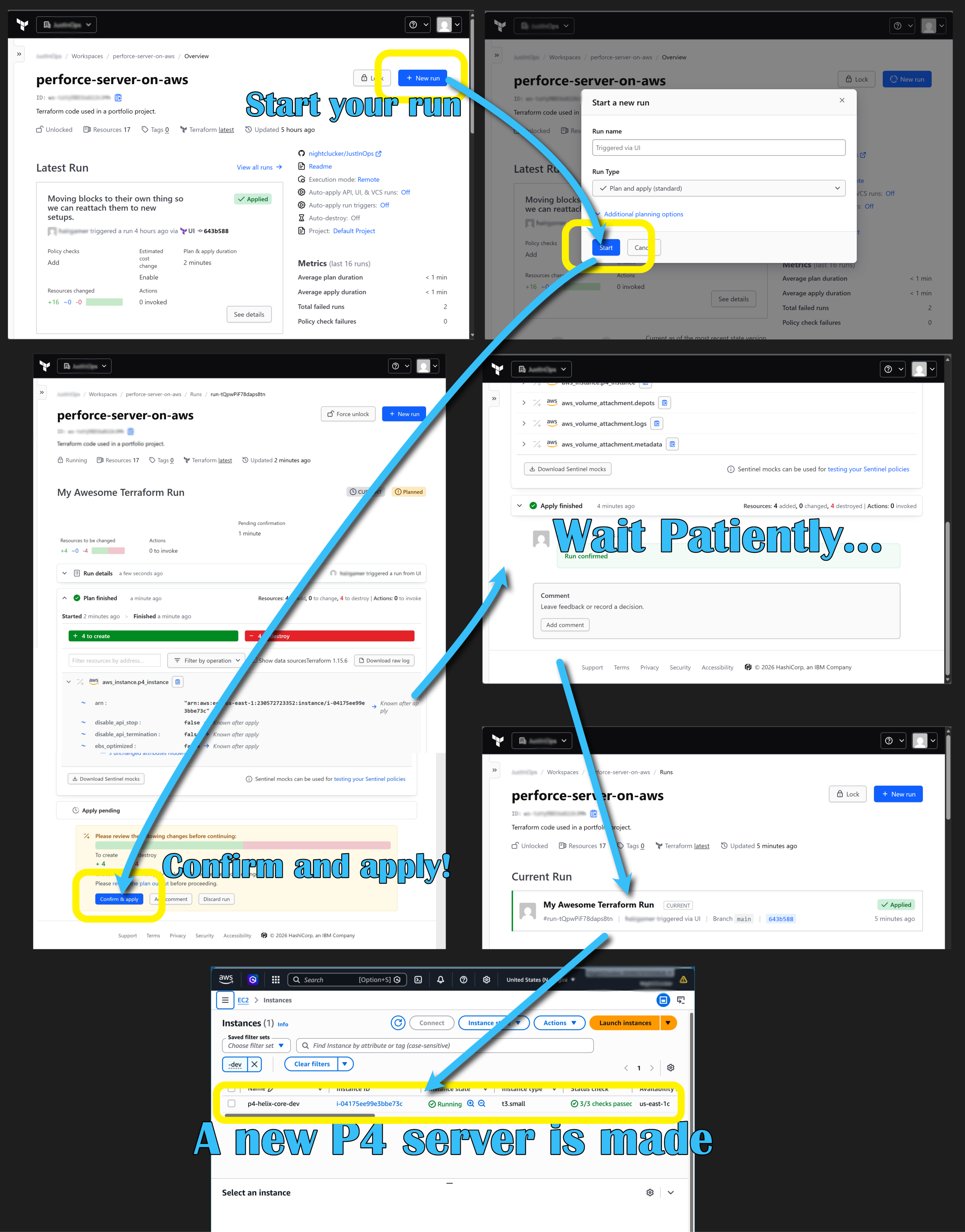
Implementation
The project started by finding and purchasing the free Perforce P4 (Helix Core) CloudFormation template on AWS Marketplace. I studied the CloudFormation template setup and ran it to understand its behavior and expected output. From there, I began writing the Terraform scripts, starting with hardcoded settings and iterating over each piece, testing as I went. When I ran into something I was unsure about, I’d ask Copilot for assistance. One interesting challenge was rewriting Perforce’s server setup script to work with Terraform, since it originally relied on CloudFormation-specific commands. Throughout this process, I committed changes to GitHub. Once everything was runnable, I set up a Terraform Cloud account linked to the GitHub repository, added the secrets and parameters as environment variables, and iterated over runs until the configuration could successfully provision and set up a Perforce server on AWS as an EC2 instance.
Issues Faced
Terraform can be straightforward as it reads almost like a recipe book but problems can arise.
Server is replaced on every run when it was expected that nothing would change.
- Fix: Added a
lifecycle{}block that set to ignore the changes in ami. - Now if you need to replace the ami you can force it in with
-replace="aws_instance.p4_instance"on the command line or use the advanced options when triggering a run in Terraform Cloud. - This change prevent accidental deletion of the server.
- Fix: Added a
Unable to upgrade the server with each run as the volumes would be remade every time sacrificing the data that was on them.
- Fix: Created the ebs resources and then assigned them to be attached to the server.
- Now, if you replace the server instance the volumes will simply be re-attached to this new one.
Next Steps
The script does exactly what you want it to do. The next thing would be to implement an actual CI pathway for the code side of things that includes: linting/formatting, validation, and policy regulation and implementation.